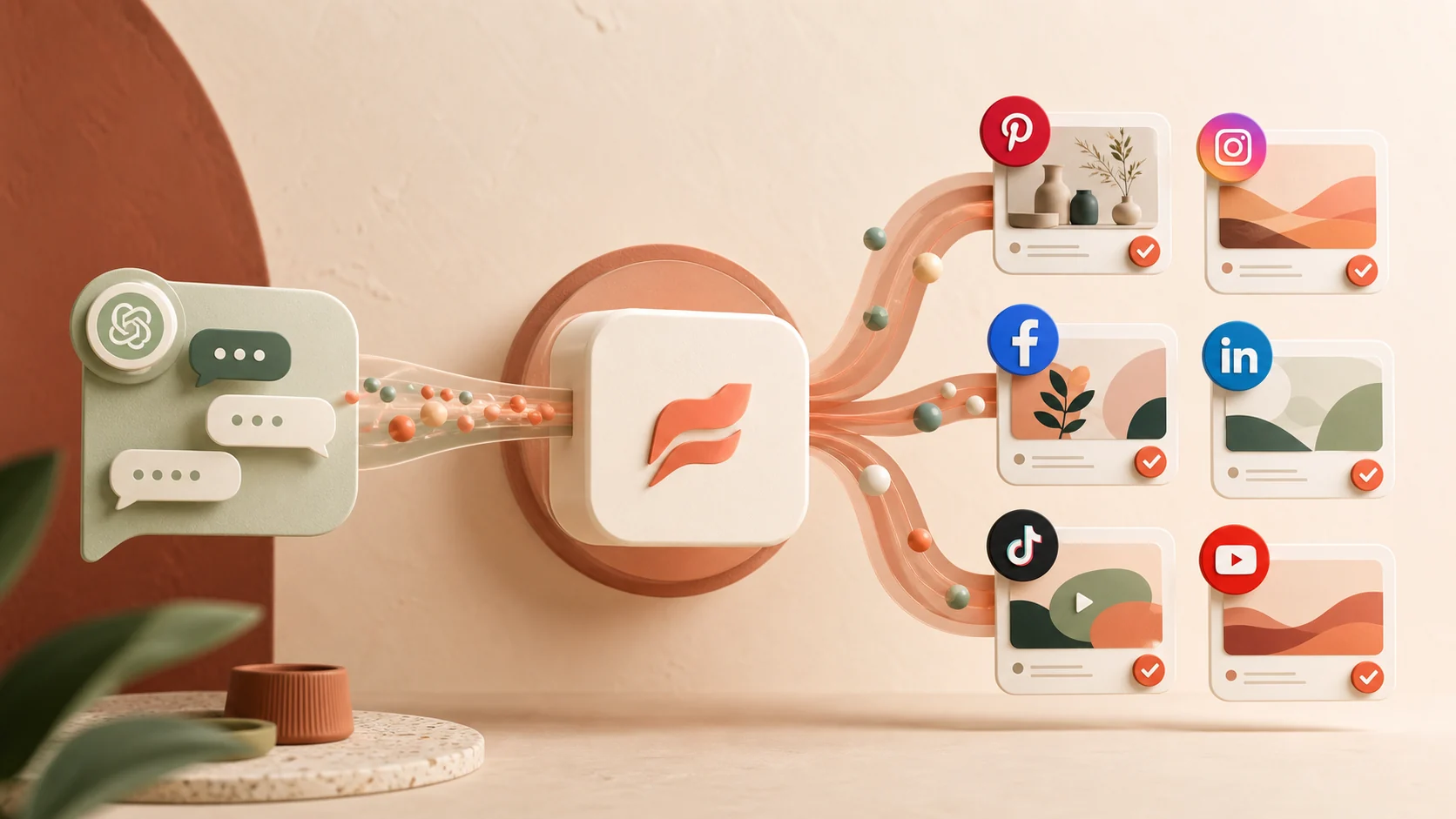
AI becomes much more useful for social media when it can move beyond suggestions and help complete the publishing workflow. The PinFlow GPT connects ChatGPT to your PinFlow workspace so you can discover linked social accounts, prepare platform-specific content, transfer generated images, and create or schedule posts without manually rebuilding everything in several dashboards.
This guide explains how the connection works, what the GPT can do, and how to use it safely across Pinterest, Instagram, Facebook, LinkedIn, TikTok, and YouTube.
What the PinFlow GPT changes
A normal ChatGPT conversation can help you brainstorm campaigns and write captions, but it does not know which social profiles belong to you and cannot publish on your behalf. The PinFlow GPT adds an authenticated action layer between the conversation and your PinFlow account.
Once connected, the assistant can:
- list the social profiles, pages, and channels linked to your PinFlow workspace
- retrieve Pinterest boards for the selected Pinterest account
- prepare posts for each supported platform
- save drafts, publish through the queue, or schedule content for a future time
- transfer a generated or attached image into permanent PinFlow storage
- report the exact result returned by PinFlow instead of assuming a post succeeded
How the account connection works
The PinFlow GPT uses OAuth, the standard authorization flow used by connected applications. You never paste your PinFlow password or API key into the conversation.
- Open the PinFlow GPT and ask it to show your connected accounts.
- The GPT attempts the protected PinFlow account action.
- If you have not connected yet, ChatGPT displays a Sign in to PinFlow button.
- Sign in to your PinFlow account and review the requested permissions.
- Approve the connection and return to the conversation.
After authorization, the GPT receives limited account-scoped access. It can operate only inside the PinFlow workspace you approved. It does not receive your PinFlow password, and it cannot browse another customer's accounts.
Connect social accounts before using the GPT
Connecting ChatGPT to PinFlow and connecting a social network to PinFlow are two different steps. The GPT connection authorizes the assistant to use your workspace. Your Pinterest, Instagram, Facebook, LinkedIn, TikTok, or YouTube accounts must already be connected from the PinFlow dashboard.
A good first prompt is:
Connect to my PinFlow account and show every social account linked to my workspace.
PinFlow checks all supported platforms in one account lookup. If one provider is temporarily unavailable, the GPT can still show accounts returned by the other platforms and report the isolated error.
From one idea to platform-ready posts
The most effective workflow starts with one campaign brief rather than six unrelated prompts. Give the GPT the product, audience, offer, destination link, and campaign goal. Then ask it to adapt the idea for the platforms you want to use.
For example:
Create a Pinterest pin, an Instagram caption, and a Facebook page post for our new summer collection. Keep the tone warm and practical, and save everything as drafts.
The assistant can adapt the same campaign source to each network:
- Pinterest: keyword-focused title, description, destination link, and board selection
- Instagram: visual caption and image or video media type
- Facebook: page-specific message, media, and optional video title
- LinkedIn: professional copy for a member or approved organization target
- TikTok: video metadata and creator privacy options
- YouTube: title, description, privacy status, tags, and Shorts selection
Using images generated inside ChatGPT
Temporary image links are not reliable publishing URLs. They can expire, require ChatGPT authentication, or become inaccessible when a social network attempts to retrieve the media.
The PinFlow GPT solves this with an attachment handoff:
- Generate an image in the GPT conversation or attach an image from your device.
- The GPT sends the conversation attachment to PinFlow using a short-lived signed OpenAI download reference.
- PinFlow immediately downloads and validates the image.
- The image is stored in your account's PinFlow media library.
- PinFlow returns a permanent CDN URL that the GPT uses for the social post.
This keeps the Action request small and ensures Pinterest, Instagram, and Facebook receive a stable public media URL. The uploaded file is also included in your normal PinFlow storage usage.
Draft, publish now, or schedule
Before creating content, tell the GPT which publishing mode you want:
- Draft: save the post in PinFlow for review without publishing it.
- Publish now: place the post in the immediate publishing queue.
- Schedule: create the post with a specific future date, time, and timezone.
Draft mode is the safest choice for a first test. It lets you confirm the destination account, media preview, copy, and links in the PinFlow dashboard before anything goes live.
Why destination confirmation matters
Many teams manage several accounts on the same platform. A useful AI publishing assistant must never guess which profile or page should receive a post. The PinFlow GPT lists available destinations and should ask you to choose when the request is ambiguous.
Before confirming a write action, review:
- the selected platform and account name
- the Pinterest board or LinkedIn target when applicable
- the final copy and destination link
- the attached image or video
- the publishing mode and scheduled time
A practical weekly workflow
You can use the GPT as a conversational layer over a repeatable weekly routine:
- Discover: list connected accounts and confirm the campaign destinations.
- Plan: ask for content angles based on one offer, product group, or audience problem.
- Create: generate channel-specific copy and prepare the visual asset.
- Review: confirm the account, board, copy, link, media, and timing.
- Execute: save drafts or schedule the approved posts in PinFlow.
- Monitor: ask for current post statuses and investigate anything that failed.
Security and control
The GPT connection follows the same account boundaries as the rest of PinFlow. OAuth tokens are scoped to the approving account, write actions require confirmation, and image attachments are downloaded only from approved OpenAI attachment hosts before being validated and stored.
You remain in control of the social accounts connected to PinFlow. If you no longer want the GPT to access your workspace, revoke the connected account from ChatGPT or disconnect the authorization in PinFlow.
What to try first
Start with a low-risk draft workflow:
- Ask the GPT to list every connected account.
- Select one Pinterest, Instagram, or Facebook destination.
- Ask for one post and one generated image.
- Confirm the final preview and save it as a draft.
- Open PinFlow and verify the media, destination, and copy.
Once that flow is familiar, expand into scheduled campaign batches and multi-platform content.
Final takeaway
The PinFlow GPT closes the gap between generating social ideas and executing them. Instead of copying text, downloading images, switching accounts, and rebuilding posts manually, you can manage the workflow from one conversation while PinFlow handles account context, permanent media storage, scheduling, and publishing status.
The result is not just faster content creation. It is a cleaner and more controlled way to turn AI-assisted planning into real social publishing.